If you get a new phone/device, change your phone number, or want to rename a device, you can update this information so you can continue to secure your account using MFA.
Device Management Website
You can manage your device(s) via the Waubonsee Device Management Website:
Note: You'll need to authenticate before you will be able to manage your devices. If you have another MFA device such as a hardware token you can use that.
What can I do with this tool?
Remove a Device
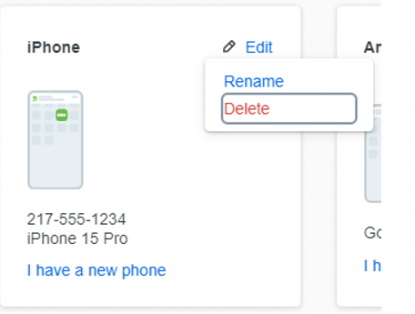
Click on the Edit button, then click on Delete.
Note: The delete option will only appear if you have another device listed. If you wish to remove it, first add another then delete the original. You will be given a chance to confirm your selection.
Add a New Device
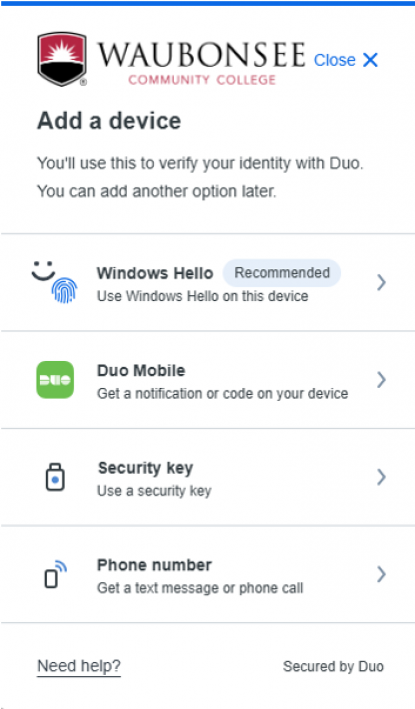
Clicking Add a devicewill walk you through a few steps to get a new device added.
If you have the DUO Mobile app already installed, use the Duo Mobile option. If you have not installed the app yet, select Phone number. Then enter your phone number for both options.
Reactivate Duo Mobile on a New Phone (Same Phone Number)
If your current device is set up for Duo and you purchased a new phone with the same number and need to reactivate Duo Mobile, instructions below will help. If you run into any issues, please contact support.
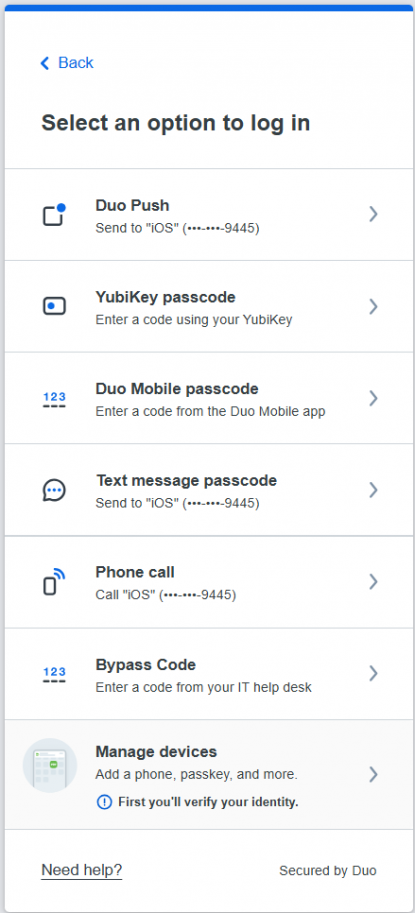
If the Duo prompt automatically sends you a push notification, click on Other options.
Authenticate using the Text message or phone call or via another device
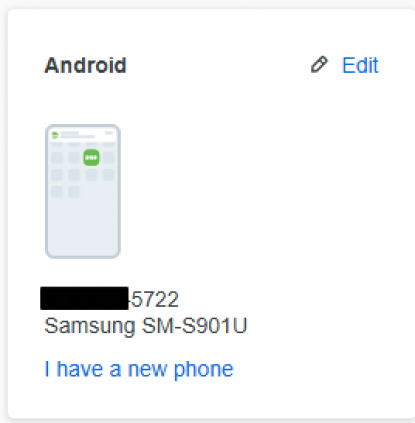
Under your device, select the “I have a new phone” link
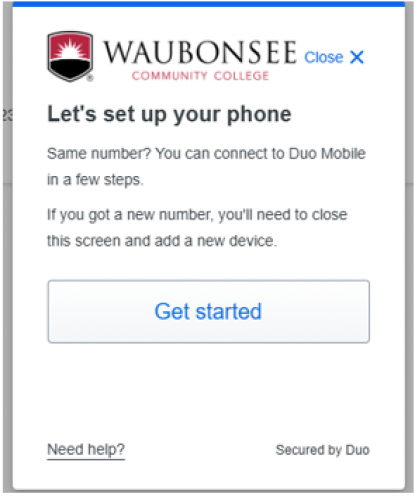
Select Get started
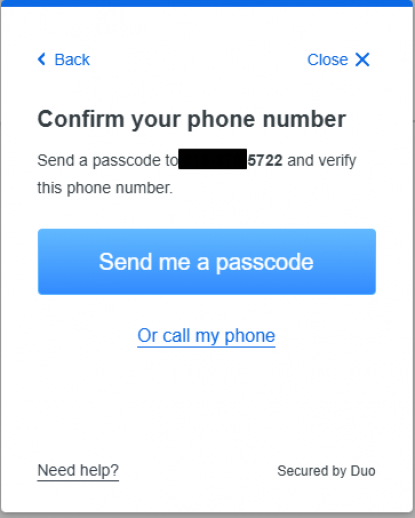
Select “Send me a passcode” or “call my phone”
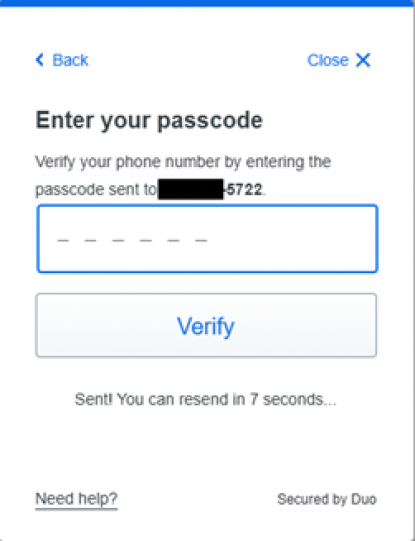
Once you have the passcode, enter it into the prompt on the screen and click Verify
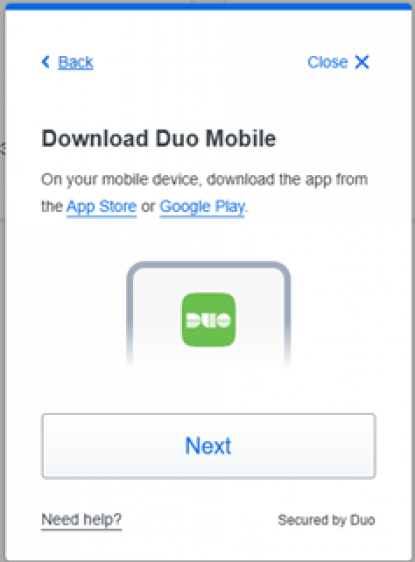
The site then gives links to the Google Play store for Android phones or App Store for Apple Phones
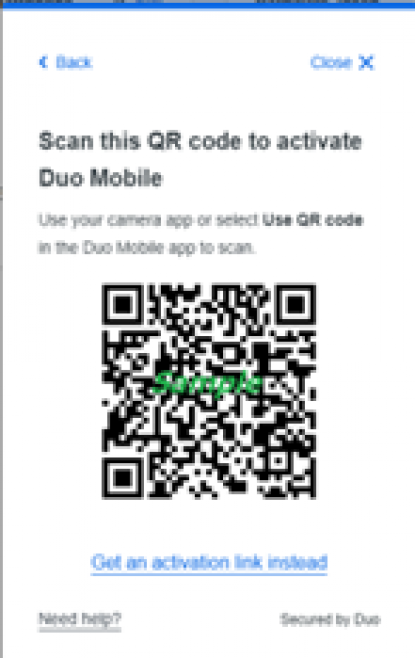
Lastly it will give you a QR code to enable Duo Mobile, scan the QR code with your phone
Duo Remembered Devices Feature
If you choose for Duo to remember you or trust your browser, a trusted session will be created for 24 hours between you, your browser, and the endpoint you are logging into. See Remembered Devices documentation for more info.
Change the display name of your device
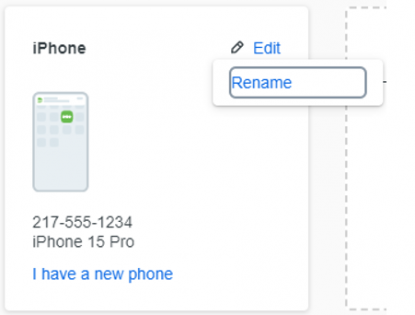
Click on the Edit link for the device you want to rename, then click on Rename.
Need Help? Contact Us
If you have any questions about multi-factor authentication or need further assistance, contact the Technical Assistance Center (TAC) Help Desk: